
Giving AI work a place to continue
Generating a first version of an application is only the beginning. The next request needs to account for the files already created, the decisions made along the way and the constraints of the team building it. Someone also needs to understand what changed, check the result and carry the project forward.
Cortex brings those steps into a shared product experience. A user creates a project, describes what they want to build and works alongside specialist agents in a workspace that combines conversation, project files and a live preview. Administrators manage the brand guidance, policies, model choices and spending limits that support that work.
I designed and implemented both sides of the application: the Next.js frontend and the Python backend. Working across the interface and execution logic let me connect what the system was doing with what a person needed to see, understand and control.
Starting with a project
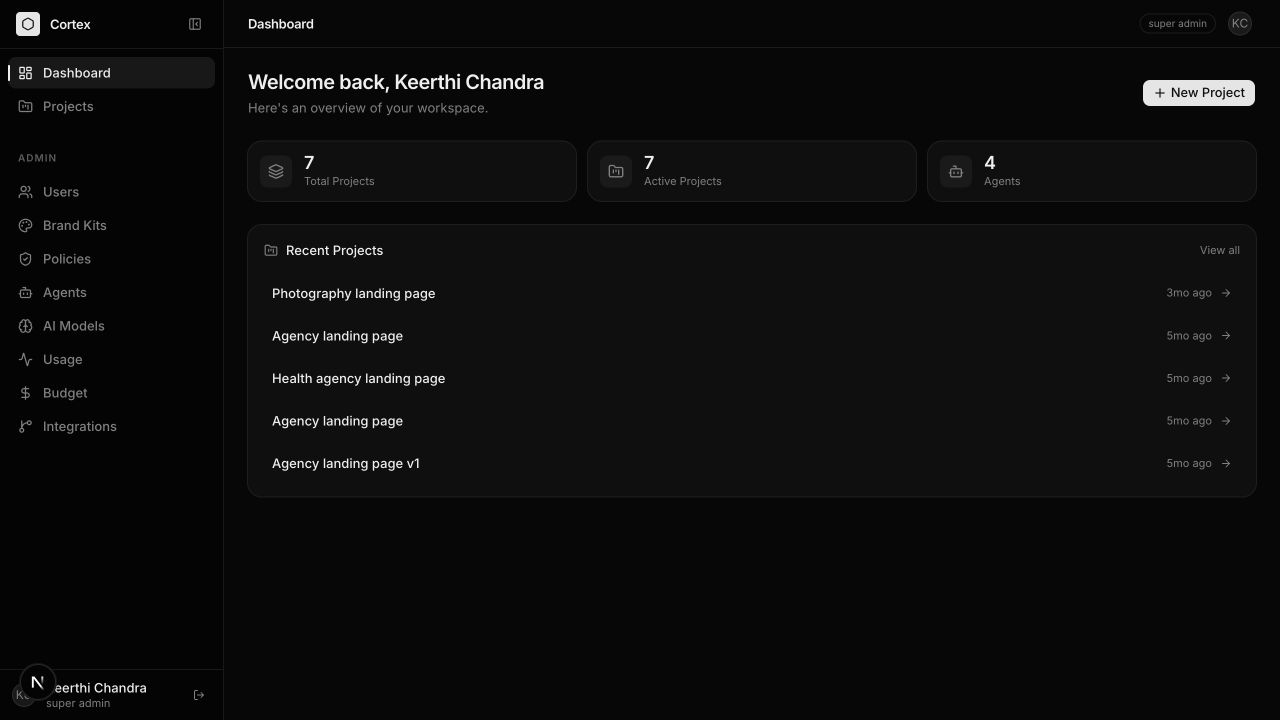
The dashboard gives people a straightforward route back into their work. Recent projects sit beneath a compact overview, with project creation close at hand. Each project has its own description, status, budget and local workspace, so the work has a persistent home from the start.
That structure carries into setup. Users choose where generated projects will live on their machine, then Cortex creates the folders for frontend, backend, prompts and supporting artifacts. The project overview brings that structure together with its brand kit and usage information before the user opens a building session.
Bringing the request and the result together
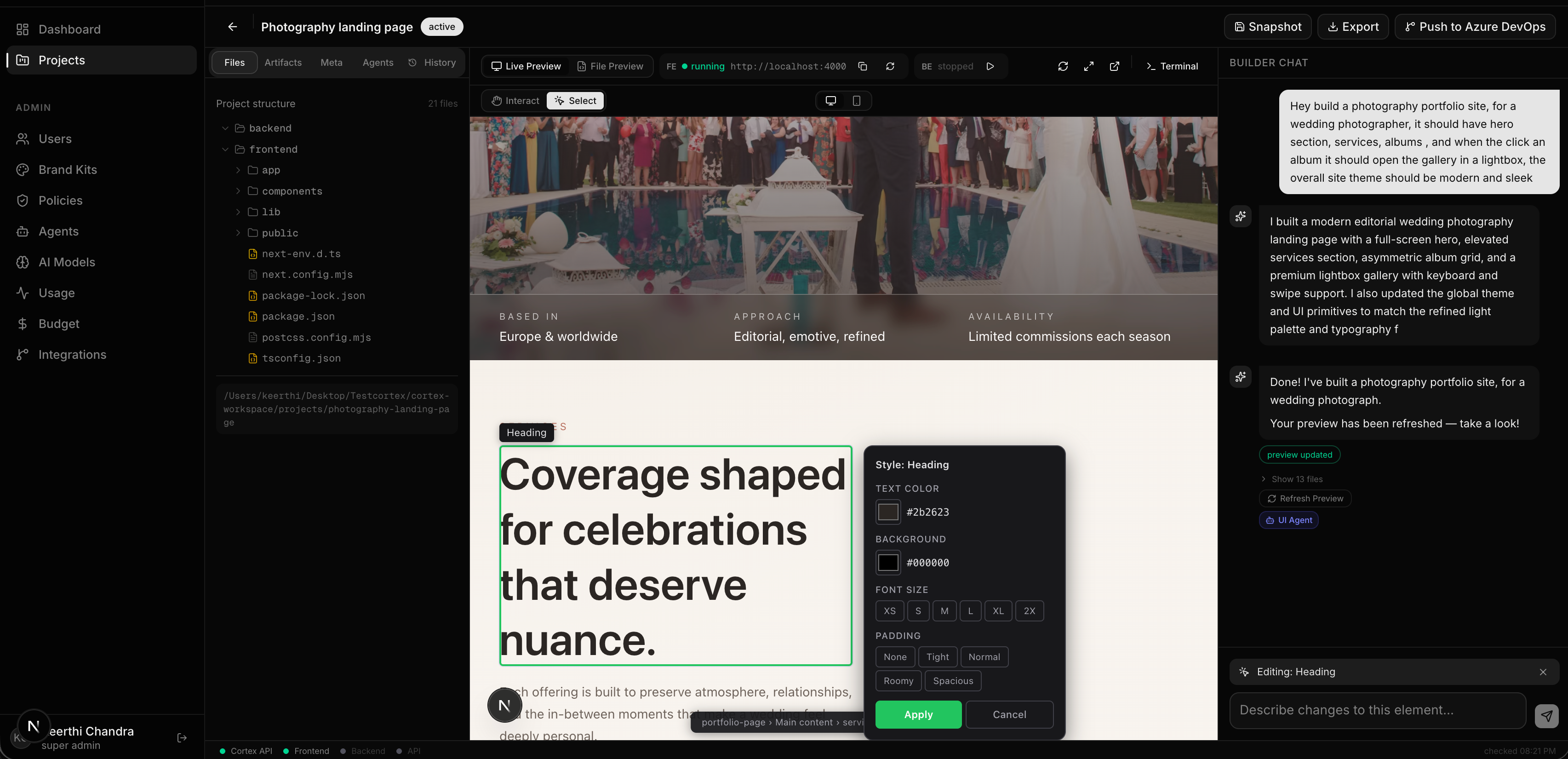
The builder is organised around three connected areas: the project's structure on the left, the working preview in the centre and the conversation on the right. A user can describe a change, inspect the result and return to the same conversation without moving between separate tools.
The centre panel supports both live and file previews. Desktop and mobile views help with checking the output, while frontend and backend status make the running environment visible. Terminal access stays close to the preview for the moments when a failed build needs more attention.
This layout also gives supporting material a clear home. Artifacts sit beside files, metadata, agent activity and history. The visual result remains the focus, with the information needed to investigate it within reach.

Giving the preview room to breathe
The full screen expanded view gives the generated application more space when it is time to review the experience. Project navigation and file panels move out of the way, while the builder conversation can remain alongside the preview. Chat can also be hidden for an uninterrupted view of the page.
Keeping the conversation available matters during refinement. Someone can review a layout at a larger size, notice what needs attention and ask for a change from the same view. Expanding the preview becomes part of the working flow, rather than a separate presentation mode.

Reviewing the same experience on mobile
Desktop and mobile controls sit directly above the preview. Switching to mobile presents the application within a narrow phone-sized frame, making it easier to review how images crop, text wraps and sections stack at that width. The same controls remain available in the expanded view.
The conversation stays with the project as the viewport changes. A user can check the mobile layout and request a refinement without leaving the workspace or starting a new discussion. This makes responsive review a natural step in each iteration. The preview supports that review, with testing on real devices still needed before release.

Pointing to the change
Describing a visual change becomes easier when the user can identify the element directly. Cortex separates Interact mode, for using the generated application, from Select mode, for inspecting and editing it. Selecting an element highlights it in the preview and makes it the current editing target.
The inspector offers direct controls for text colour, background, font size and padding. A user can adjust a property and apply the change at the point where they are evaluating the design. The selected element also appears above the chat input, so the target remains clear.
For a change that needs more explanation, the user can ask Cortex to work on that selection. The element context travels with the request, reducing the need to describe which heading, card or section they mean. Direct style controls and contextual requests support two ways of refining the same interface: adjusting a known property or describing the result the user wants.
Coordinating specialists behind the interface
Cortex separates UI, backend, data and review work into specialist agents. The orchestration layer classifies a request, selects the relevant agents and checks their permissions. When a request spans several areas, the planner creates an ordered sequence and passes the results of earlier steps into the next one.
That handoff matters for a feature that needs both data and an interface. The UI work needs to account for the models and endpoints created earlier. The execution layer carries that context forward and applies file ownership boundaries during plans involving several agents.
I connected execution progress to the frontend through Server-Sent Events. The workspace can reflect activity as it happens instead of leaving the user with an unexplained wait. Agent controls also make model selection and policy assignments part of the product's administration experience.

Making brand guidance usable during generation
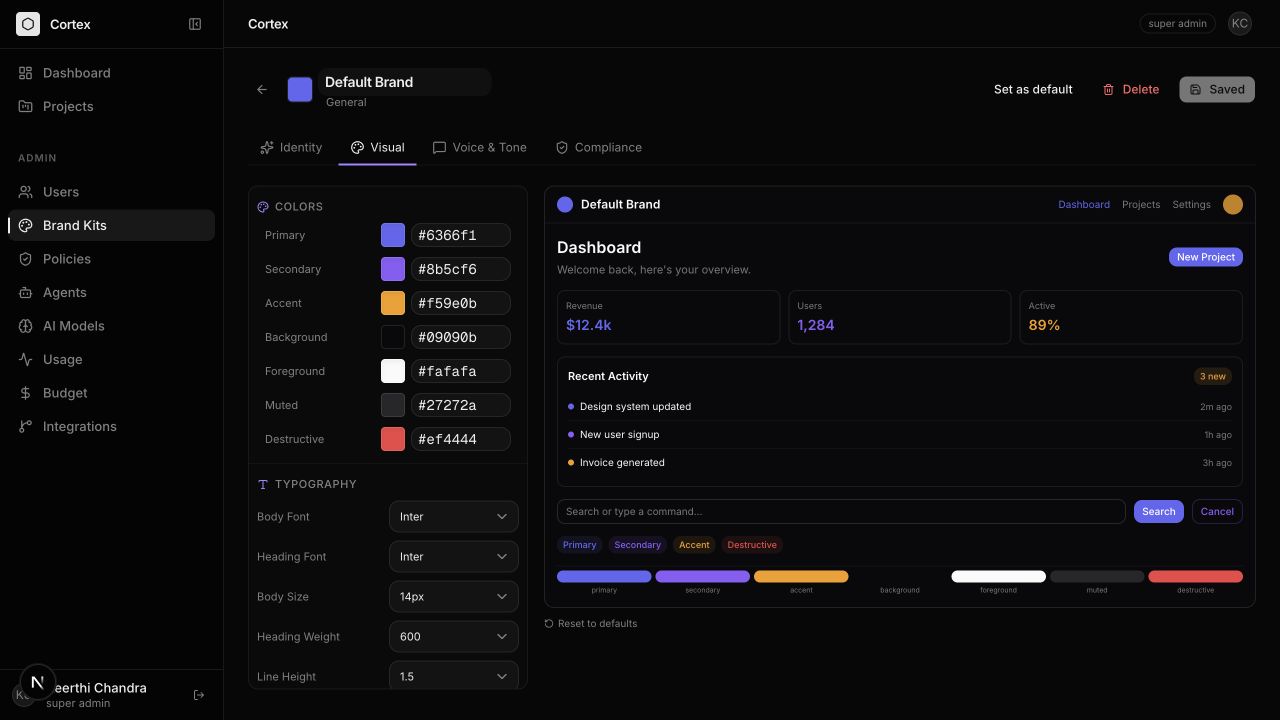
A team should be able to define its visual language once and apply it across projects. Cortex's brand kits collect identity, visual styles, voice and compliance guidance in one place. The visual editor pairs editable tokens with a representative interface preview, making choices about colour, typography, spacing and component treatments easier to judge together.
The same approach extends to agent behaviour. Administrators can define policies for interface design, architecture, security and data modelling, then assign those policies to agents. The rules become part of the agent's runtime instructions. They provide guidance for generation; the resulting application still needs review.
Model configuration, usage reporting and budgets sit alongside these controls. Teams can choose providers and models, inspect consumption and set limits by user or project without making those decisions inside every building session.
Preserving the work between sessions
An ongoing project needs more than a conversation history. Cortex stores project memory and writes supporting artifacts for prompts, execution, issues, fixes and review decisions. These records keep useful context with the project and give someone returning to it a way to understand how it reached its current state.
Snapshots provide another point of reference. The workspace exposes saved versions and restoration controls, while export and Azure DevOps integration provide paths for handing the generated project to engineering. The intended journey runs from a local prototype through iteration and review to a project another developer can take forward.
What building Cortex clarified
The most demanding part of this work was connecting an uncertain generation process to an interface people could follow. A request can involve several agents, change multiple files and encounter errors before a preview is ready. Each of those states needs a clear place in the experience.
Designing and building the full system made those dependencies tangible. Progress indicators depended on meaningful backend events. A useful history depended on preserving the right records. Brand controls depended on carrying their values into generation. The interface and the underlying services had to support the same workflow.
Cortex remains a working prototype under development. Its current value is the connected workflow: a project that retains context, a workspace where the result can be inspected and a set of controls for directing the next iteration. Broader reliability and team adoption remain work to validate.
Technologies used
Next.js · TypeScript · Python · FastAPI · Server-Sent Events · SQLite